YouTube Music (via your browser)
You must have a YouTube or YouTube Music account in order to continue.
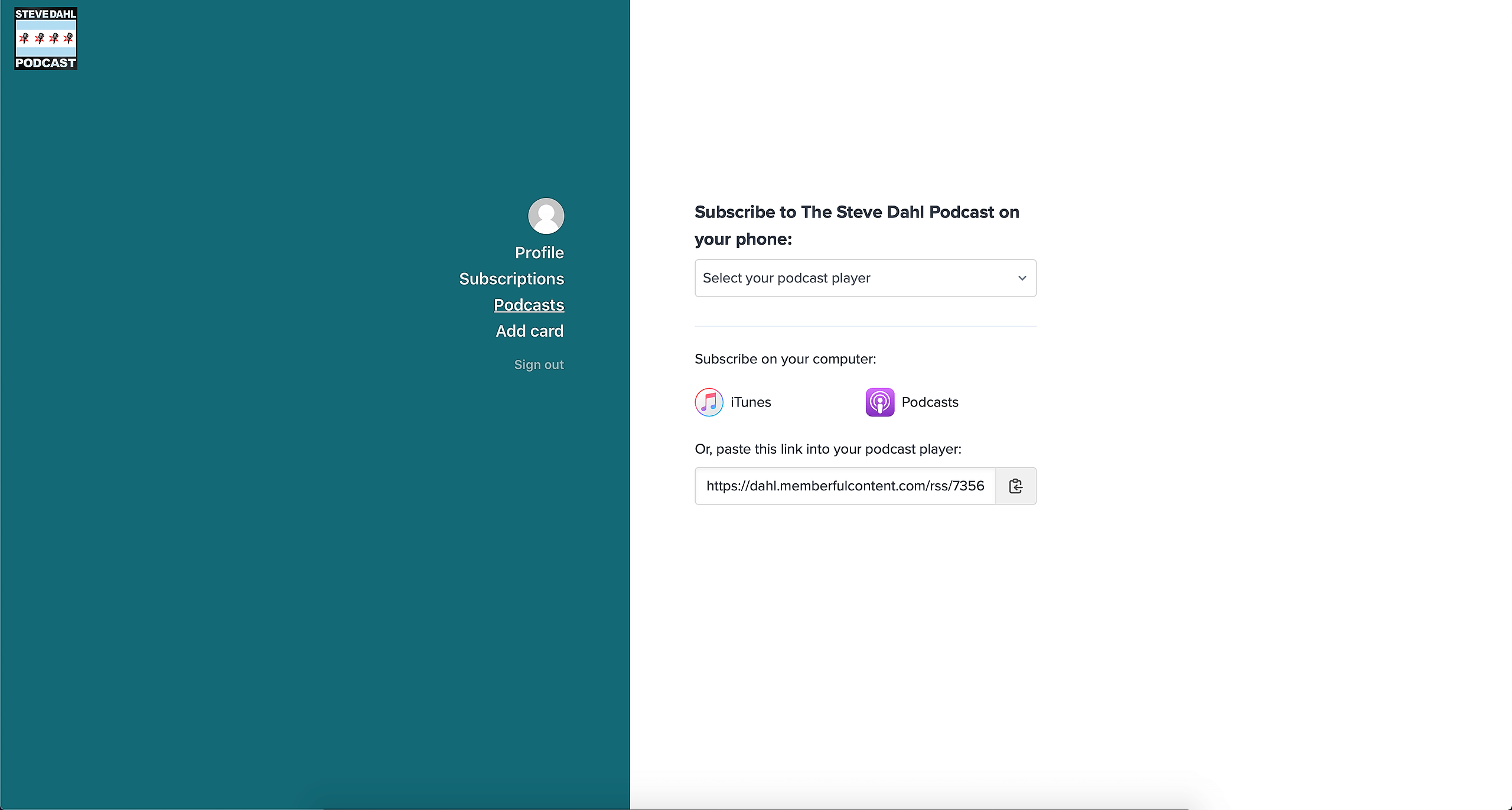
1. Get your private RSS feed URL by logging into the Steve Dahl website and copy the RSS feed link located under "paste this link into your podcast player".
2. Navigate to YouTube Music via your browser.
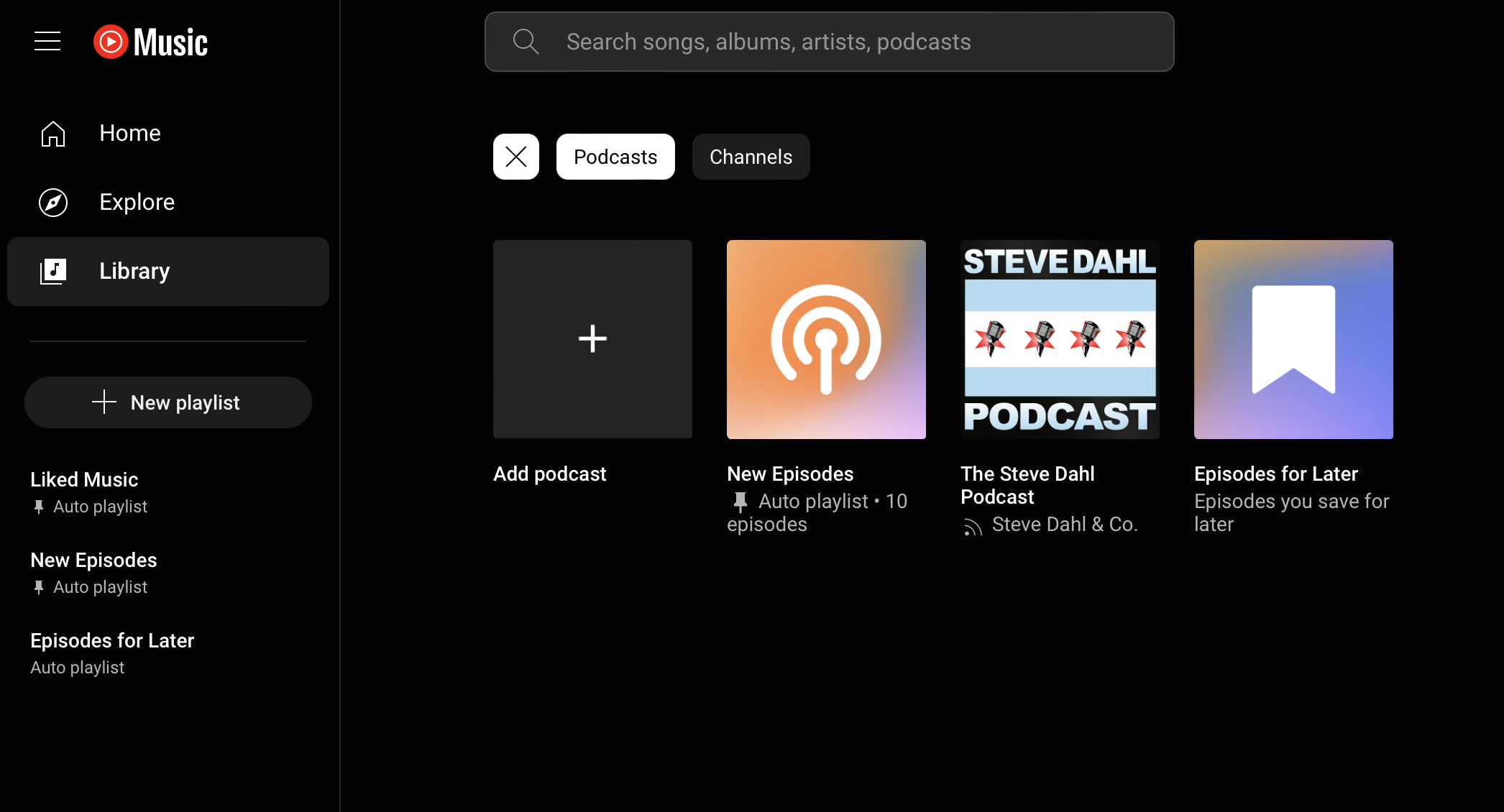
3. Click Library in the left navigation.
4. Click Podcasts in the top navigation.
5. Click Add Podcast > Add RSS feed.
6. Paste the RSS feed you copied in Step 1 into the box and click Add.
7. Click the refresh button in your browser and you should now see Steve Dahl Podcast in your library.
Pocket Casts
Install the App: To use Pocket Casts, first open the Windows App Store on your device and search “Pocket Casts.” Next, click “Install.” Open Pocket Casts after it has finished downloading and follow the steps below to subscribe on your device.
Make sure you are logged into your Steve Dahl Podcast account.
Open Pocket Casts on your Windows machine.
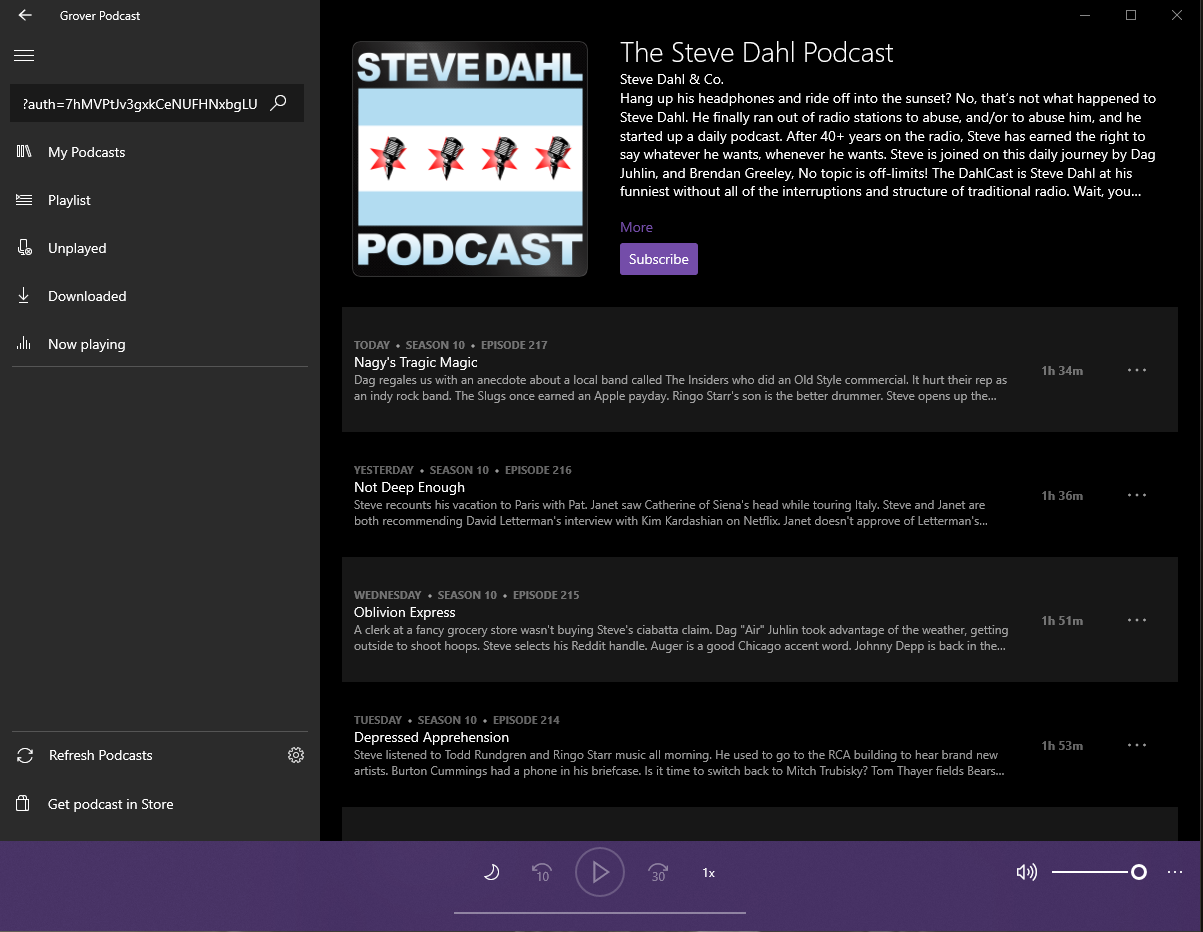
Copy the URL located in your dahl.com account (it should start with dahl.memberfulcontent.com...) and paste it into the search box. The Steve Dahl Podcast will come up if pasted correctly.
You can then click on “Subscribe.”
Grover
Install the App: To use Grover, first open the Windows App Store on your device and search “Grover Podcast.” Next, click “Install.” Open Grover after it has finished downloading and follow the steps below to subscribe on your device.
Make sure you are logged into your Steve Dahl Podcast account.
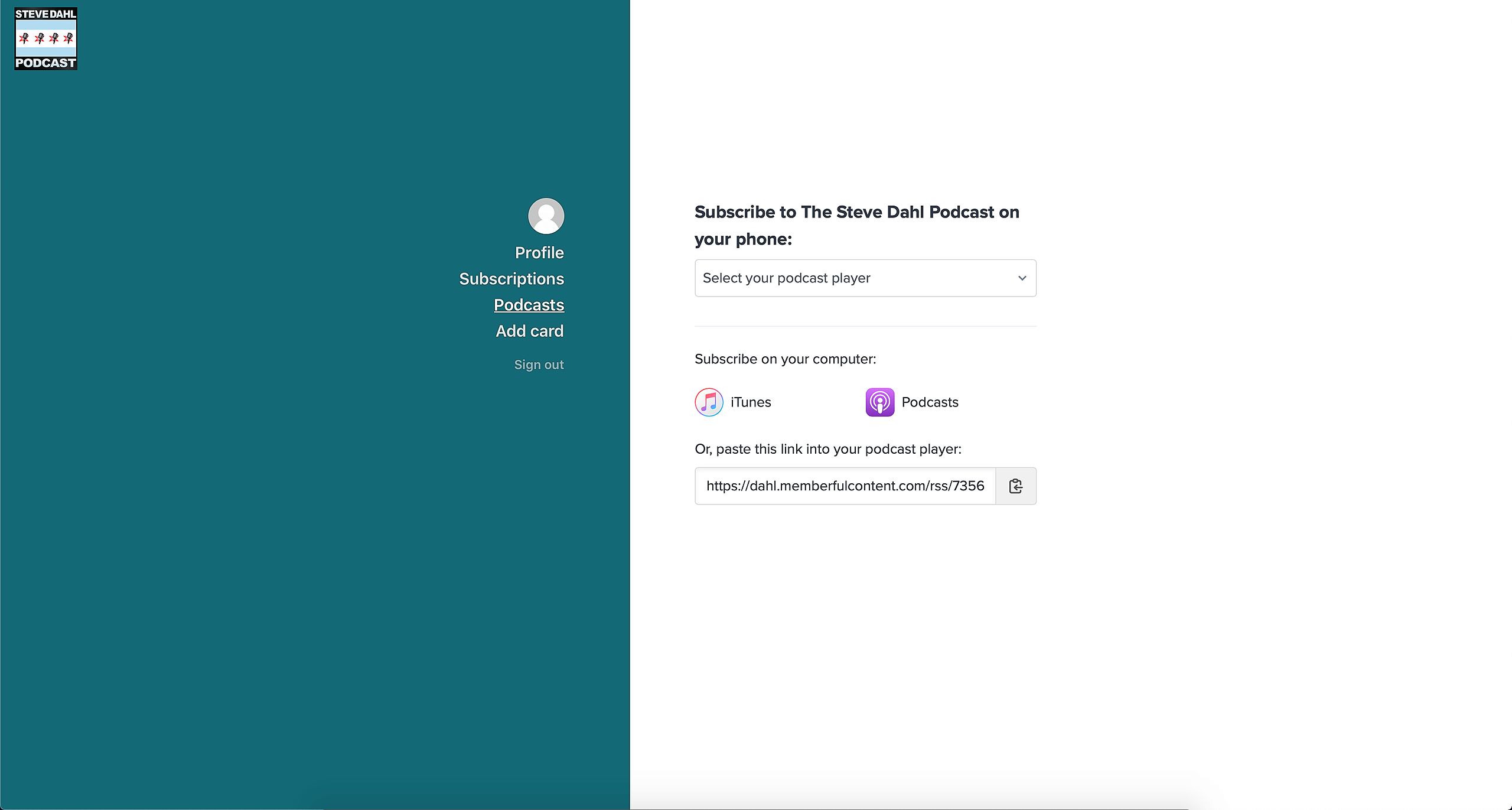
Open Grover on your Windows machine. Copy the URL located in your dahl.com account (it should start with dahl.memberfulcontent.com...) and paste it into the search box. The Steve Dahl Podcast will come up if pasted correctly. You can then click on “Subscribe” at the top.